Getting Started with StockCraft - Manufacturing ERP for Small Makers
Your complete guide to setting up and running your manufacturing business with StockCraft's lightweight ERP system. Learn Bill of Materials management, Material Requirements Planning, and production control in minutes.
Welcome to StockCraft!
StockCraft is a lightweight Manufacturing ERP system designed specifically for small makers and craft businesses. Whether you sell 3D printed items, resin crafts, jewelry, or other manufactured products, this guide will walk you through setting up complete business management with Bill of Materials, inventory control, and production planning.
What You'll Learn
- Setting up your manufacturing ERP system and user accounts
- Material Requirements Planning (MRP) - adding materials and inventory tracking
- Bill of Materials (BOM) management - building components with automatic cost calculation
- Product catalog creation with variants and SKU mapping
- E-commerce integration with Shopify for automated order processing
- Production planning and workflow management
- Manufacturing cost analysis and financial reporting
- AI-powered insights for data-driven decision making
- Inventory alerts and reorder point management
- Bulk data import from CSV/Excel files
- Data export for analysis, backup, and compliance
Step 1: Create Your Account
Sign Up for StockCraft
Getting started with StockCraft is easy and free. Visit app.stockcraft.org/auth/signup to create your account.
- Enter your email address - Use an email you check regularly for important notifications
- Choose a secure password - At least 8 characters with uppercase, lowercase, and numbers
- Provide your business name - This will be your tenant name in StockCraft
- Verify your email - Check your inbox for a verification link and click it
- Complete your profile - Add optional details like business address and phone number
💡 Pro Tip
Enable multi-factor authentication (MFA) in your account settings for added security. This protects your business data from unauthorized access.
Step 2: Material Requirements Planning (MRP)
Setting Up Your Material Inventory
Materials are the foundation of your Manufacturing ERP system. They represent raw supplies like filament, resin, paint, screws, packaging, or any other consumable item you use in production. StockCraft's MRP system tracks quantities, costs, and automatically alerts you when reorder points are reached.
How to Add a Material:
- Navigate to Materials in the main menu
- Click "Add Material" button
- Enter the material name (e.g., "PLA Filament - Black 1kg")
- Select the unit type (kilogram, liter, piece, meter, etc.)
- Enter the price per unit (e.g., $20 per kilogram)
- Set the reorder point (optional - triggers low stock alerts)
- Add notes or supplier information (optional)
- Click "Save"
Example: 3D Printing Filament
- Name: PLA Filament - Black
- Unit: Kilogram (kg)
- Price per Unit: $18.50
- Reorder Point: 2 kg
- Notes: "From AcmePlastic.com - Order in bulk for discount"
⚠️ Important
Keep your material prices up to date! StockCraft uses these prices to automatically calculate product costs. When material prices change, update them in StockCraft to ensure accurate profit margins.
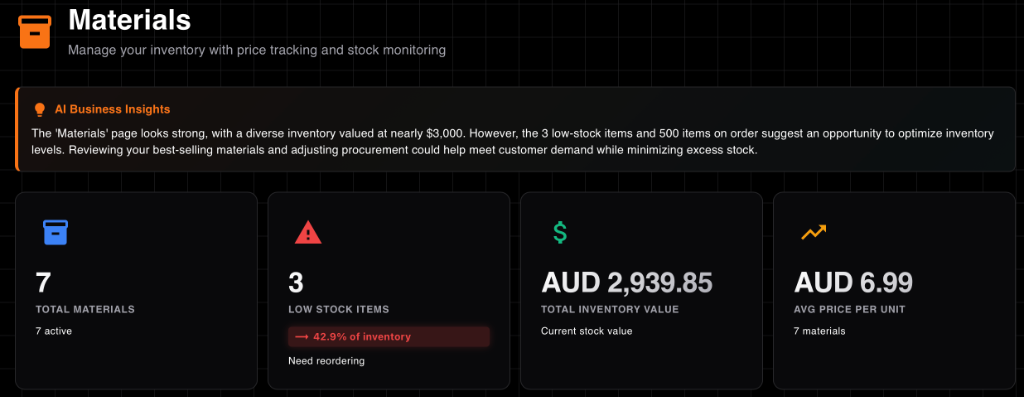
StockCraft Materials List showing inventory levels and low stock alerts
Step 3: Bill of Materials (BOM) Management
Create Hierarchical Bill of Materials
Components in StockCraft represent your Bill of Materials (BOM) - reusable assemblies made from materials or other components. This hierarchical BOM structure is perfect for manufacturing parts that appear in multiple products, like standard bases, enclosures, or sub-assemblies.
Why Use Bill of Materials (BOM) Management?
- Automatic manufacturing cost calculation: StockCraft calculates costs based on materials, quantities, and wastage
- Reusable manufacturing assemblies: Build once, use in multiple products across your production line
- Multi-level BOM hierarchy: Components can contain other components for complex manufacturing assemblies
- Manufacturing wastage tracking: Account for support material, failed prints, scrap, and material loss
How to Create a Component:
- Navigate to Components
- Click "Add Component"
- Enter component name (e.g., "3D Printed Enclosure Base")
- Add materials:
- Select material (e.g., PLA Filament - Black)
- Enter quantity (e.g., 0.15 kg)
- Set wastage percentage (e.g., 10% for supports and failed prints)
- Add sub-components (optional)
- StockCraft automatically calculates the total cost
- Click "Save"
Cost Calculation Example
Component: 3D Printed Dragon Figurine Base
Materials:
- PLA Filament Black: 0.15 kg × $18.50/kg × (1 + 10% wastage) = $3.05
- Support Material: 0.03 kg × $15.00/kg × (1 + 5% wastage) = $0.47
Total Cost: $3.52 (calculated automatically)
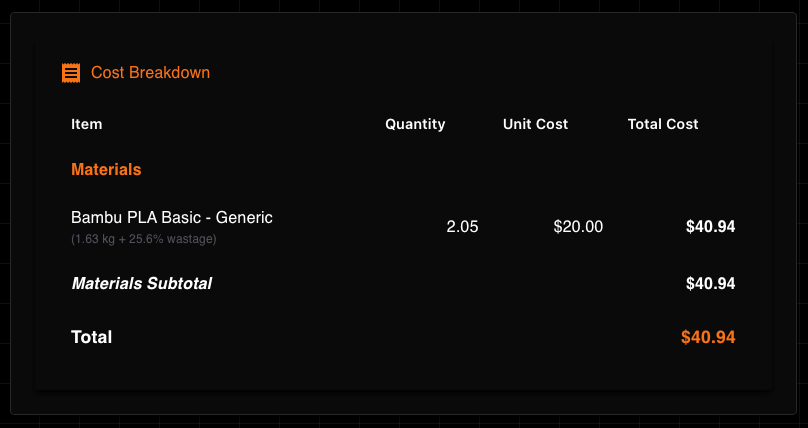
Automatic cost calculation including wastage
Step 4: Create Products and Variants
Build Your Product Catalog
Products are what you sell to customers. Each product can have multiple variants (different sizes, colors, configurations) with their own SKUs and costs.
Creating a Product:
- Go to Products → "Add Product"
- Enter product name (e.g., "Dragon Figurine Collection")
- Add description and category
- Create variants for different options:
- Small (10cm) - SKU: DRAG-SM-001
- Medium (15cm) - SKU: DRAG-MD-001
- Large (20cm) - SKU: DRAG-LG-001
- For each variant, add components and/or materials:
- Components: Reusable assemblies (e.g., "Dragon Base Component")
- Direct Materials: Raw materials added directly (e.g., "Gold Paint" or "PLA Filament")
- Set selling price and watch profit margin calculate automatically
- Map external SKUs (e.g., Shopify SKUs) for integration
💡 Components vs Direct Materials
Use Components when: You have reusable parts used in multiple products (e.g., a standard base or enclosure)
Use Direct Materials when: You have simple products or unique materials that won't be reused (e.g., custom paint colors, one-off packaging)
Example: Product with Direct Materials
Product: Custom Painted Dragon Figurine
Components:
- Dragon Base Component: $3.52
Direct Materials:
- Gold Acrylic Paint: 0.02 L × $25/L × 1.05 (5% wastage) = $0.53
- Clear Varnish: 0.01 L × $18/L × 1.10 (10% wastage) = $0.20
- Gift Box: 1 piece × $1.50/piece = $1.50
Labor: $2.00
Overhead: $1.25
Total Cost: $9.00
Profit Margin Calculation
Product: Custom Painted Dragon Figurine
Cost: $9.00 (components + materials + labor + overhead)
Selling Price: $35.00
Profit: $26.00 (74% margin)
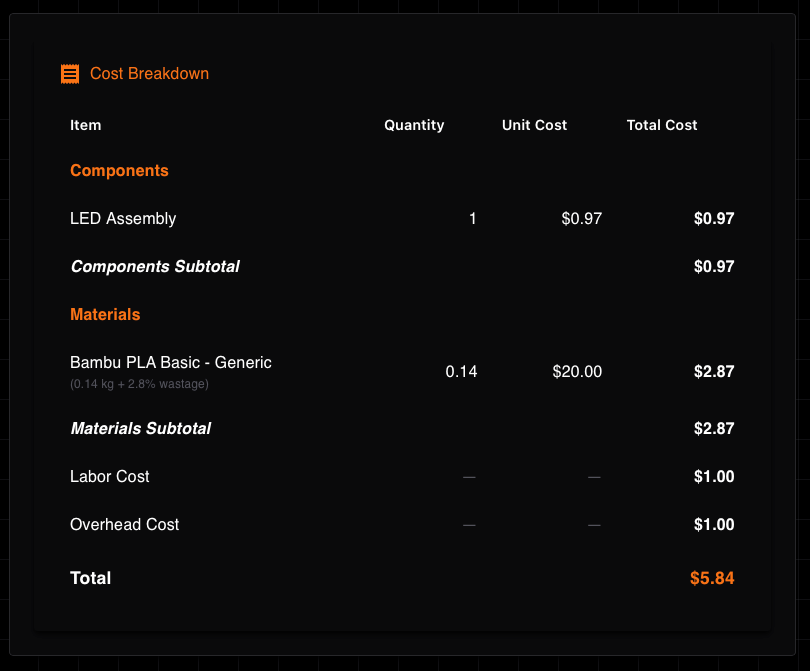
Detailed cost analysis
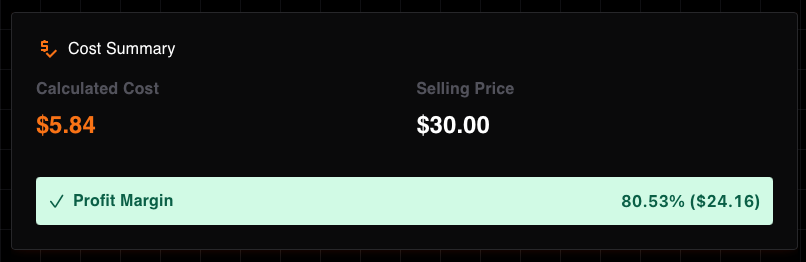
Real-time margin calculation
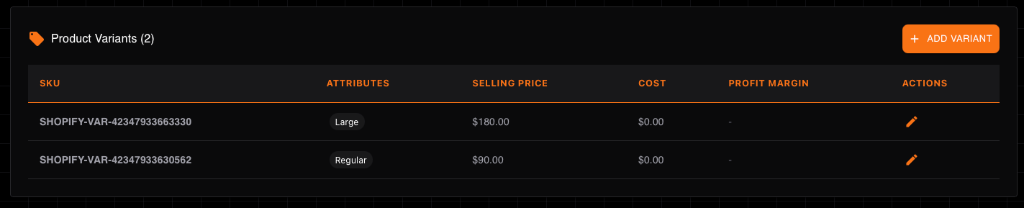
Track profitability across all product variants
Step 5: Connect Shopify (Optional)
Automate Order Tracking with Shopify Integration
Connect your Shopify store to automatically sync orders, track sales, and analyze profitability across all your sales channels.
Setup Sales Channels
Configure your sales channels (Shopify, Etsy, etc.) in Settings → Sales Channels. This allows you to track exactly where your orders are coming from.
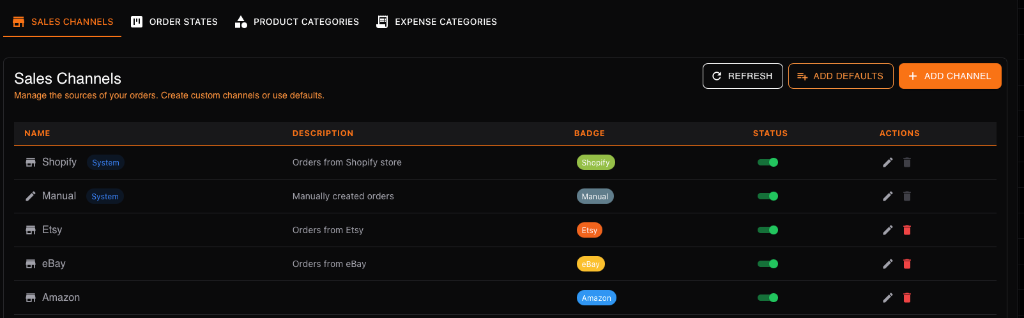
Setting Up Shopify Integration:
- Go to Settings → "Integrations"
- Click "How to setup" for detailed instructions
- Create a custom app in Shopify Admin with the following scopes:
read_products- Required to sync product informationread_orders- Required to import orders and customer detailswrite_products(optional) - Only if you plan to sync data back to Shopify
- Enter your Shopify store URL using your
mystore.myshopify.comdomain - Enter the Admin API access token from your Shopify app
- Click "Save Settings" to connect
⚠️ Important: Use Your myshopify.com Domain
API keys only work with your
myshopify.com domain, not custom domains. Even if your store uses a custom domain like
shop.yourbrand.com, you must use the myshopify.com domain for API access.
💡 How to Find Your myshopify.com Domain
There are three easy ways to find
your myshopify.com domain:
- Check your browser's address bar when logged into Shopify Admin - it will show
admin.shopify.com/store/your-store-namewhereyour-store-nameis your myshopify.com subdomain - Go to Settings > Domains in Shopify Admin - your
myshopify.comdomain is listed under "Primary domain" or "Shopify-managed domains" - Check your Shopify welcome email - it contains your
myshopify.comdomain
Example: If your
store is myawesomestore.myshopify.com, enter exactly that (including the
.myshopify.com part).
✓ What Gets Synced
- Order details (date, items, quantities, pricing)
- Customer information (email, name, phone, shipping address)
- Product costs at time of sale (frozen for accurate profit)
- Sales channel information (Shopify, Etsy, Amazon, etc.)
- Order status updates
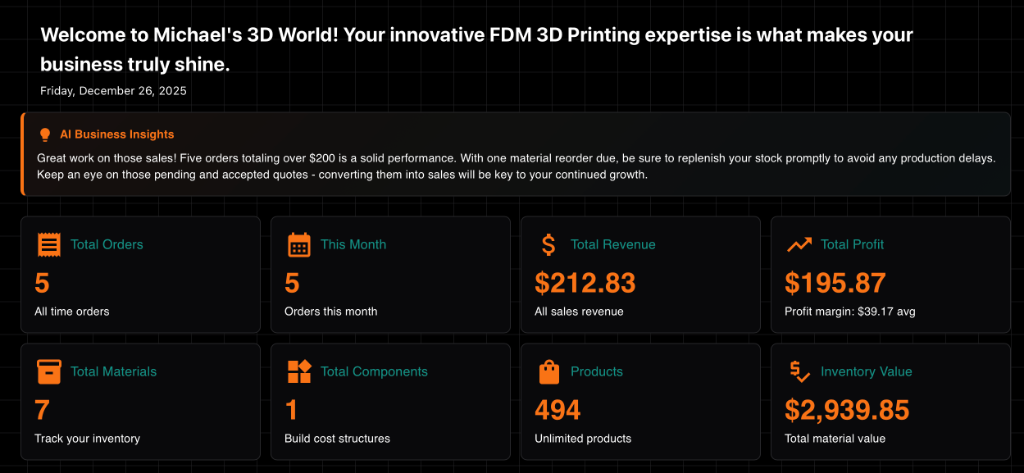
Monitor your sales performance across all channels in real-time
Step 6: Production Planning & Control
Manufacturing Workflow Management
Track manufacturing orders through customizable production states from payment to shipping. Monitor production bottlenecks, identify delays, and ensure timely delivery with comprehensive production control.
Custom Workflow States
Define your own production steps in Settings → Order States to match your actual manufacturing process. Add states like "Printing", "Curing", "Sanding", or "Packaging".
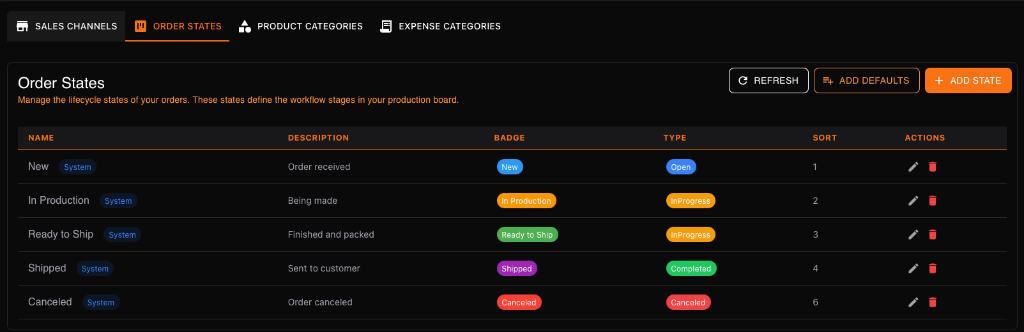
Default Production States:
- Paid: Customer has paid, ready to start production
- In Progress: Currently being manufactured
- Built: Manufacturing complete, awaiting shipment
- Shipped: Sent to customer
- Delivered: Confirmed delivery
Customize these states to match your workflow! Add states like "Awaiting Parts," "Quality Check," or "Packaging" as needed.
Manufacturing Analytics & Financial Reporting
Generate comprehensive manufacturing cost analysis and profit/loss reports to understand your production efficiency and business performance. StockCraft now includes AI-powered insights to help you make smarter decisions.
Manufacturing ERP Reports:
- AI Insights: Get intelligent, context-aware recommendations about your business performance, trends, and optimization opportunities across all pages
- Revenue by Product Line: Which manufactured products generate the most sales?
- Manufacturing Profit Analysis: Monthly, quarterly, or yearly profit trends with cost breakdowns
- Material Cost Analysis: Raw material costs, manufacturing wastage, labor, and overhead breakdown
- Sales Channel Performance: Multi-channel profitability analysis (Shopify, Etsy, direct sales)
- Production Efficiency Metrics: Cycle time analysis, bottleneck identification, and workflow optimization
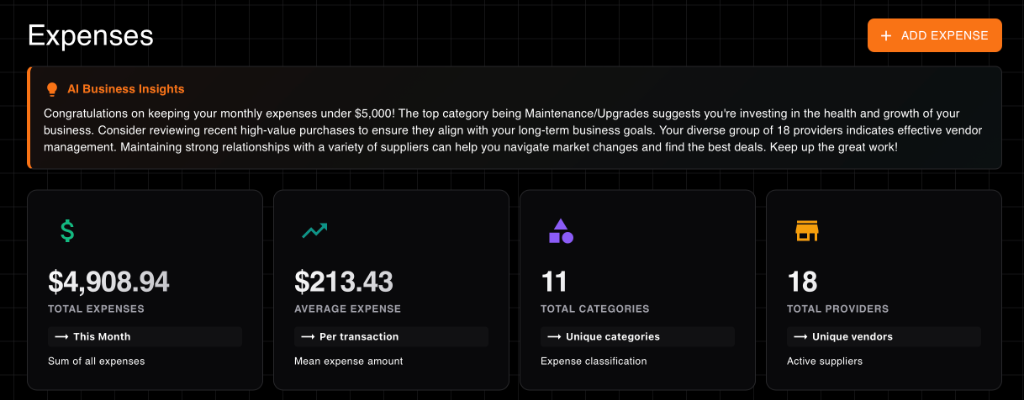
Powerful analytics help you understand where your money is going
Step 7: Advanced Features
Inventory Management
Track stock levels, manage adjustments, and receive low stock alerts to keep your production running smoothly.
Key Features:
- Stock Adjustments: Record when materials are received, used, or corrected
- Low Stock Alerts: Automatic notifications when materials fall below reorder points
- Adjustment History: Complete audit trail of all stock movements
- Inventory Reports: Stock levels, valuation, and reorder reports
Accounting Integrations PLUS
Connect StockCraft directly to your accounting software and eliminate manual data entry. Push sales revenue, expenses, and cost of goods sold to your accounting platform with a single click.
Supported Platforms:
- Xero: Push sales invoices and purchase bills directly to your Xero organisation
- QuickBooks Online: Sync revenue and expense data to your QuickBooks company
- MYOB Business: Send invoices and bills to your MYOB company file
How It Works:
- Navigate to Finances → API Connections
- Click "Connect" for your accounting platform
- Authorise StockCraft via secure OAuth 2.0 (your credentials are never stored)
- Set your sync date range to control which transactions are pushed
- Click "Sync Now" to push financial data on demand
💡 Plus Plan Feature
Accounting integrations are available on the Plus plan ($5/month). Free-tier users can upgrade anytime to unlock direct connections to Xero, QuickBooks Online, and MYOB Business.
Migrate from Spreadsheets with Import & Export
Built for makers who are ready to graduate from messy spreadsheets. Bulk import materials, components, and products from CSV/Excel files, and export data for analysis or backup anytime.
Spreadsheet Migration Features:
- CSV/Excel Support: Move your data from Excel, Google Sheets, or Numbers in minutes.
- Smart Column Mapping: Match your existing spreadsheet columns to StockCraft fields with ease.
- Data Validation: Automated error checking ensures your inventory and costs are imported accurately.
- Rollback Protection: Imported something wrong? Undo any import within 24 hours.
Data Portability (Export):
- Universal Formats: Export your materials, products, and reports as CSV or Excel files.
- Account Snapshots: Download a full backup of your entire business database in a single ZIP archive.
- Financial Ready: Export pre-formatted reports for your accountant or tax filing.
- Full Ownership: Your data belongs to you. Export anytime with no restrictions or exit fees.
You're Ready to Go!
You now have everything you need to start managing your 3D printing or craft business with StockCraft. If you have questions, check out our FAQ or contact support.