Moving from Spreadsheets to StockCraft
Easily migrate your inventory, materials, and product data from Excel or CSV files. Built for makers who need a more powerful way to manage their business.
StockCraft's import/export system is designed specifically to help you transition away from complex, error-prone spreadsheets. Whether you're moving from a local Excel file, Google Sheets, or another inventory system, our tools make it quick and easy to get up and running.
Bulk Migration via Import
Migrate your entire catalog including materials, components, products, and variants in bulk. Our intelligent column mapper understands your existing spreadsheet structure, so you don't have to spend hours reformatting your data.
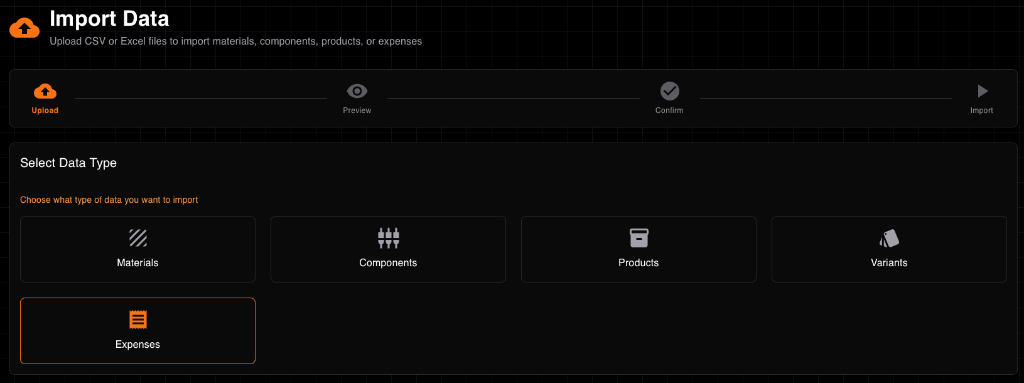
Easy step-by-step import process
Import Process
- Upload File: Navigate to Data Management → Import Data
- Preview & Map: Review first 10 rows and map columns to StockCraft fields
- Validate: System checks all rows for errors and business rule compliance
- Review Errors: Fix any validation errors in your file
- Confirm Import: Review summary and confirm to start import
- Monitor Progress: Track import progress for large files
✓ Supported File Formats
- CSV: Comma-separated values (UTF-8 encoding recommended)
- Excel: .xlsx format (Excel 2007 and newer)
- Large Files: Files with 1000+ rows processed asynchronously
- Encoding: Automatic detection of UTF-8, UTF-16, and other encodings
Import Templates
Download pre-formatted templates with example data to ensure your imports work correctly.
Available Templates
- Materials Template: SKU, Name, Description, Unit Type, Price, Stock, Reorder Point, Supplier Info
- Components Template: SKU, Name, Description, Category, Material Composition, Labor/Overhead Costs
- Products Template: SKU, Name, Description, Category, Component/Material Composition, Pricing
- Variants Template: Product variants with different sizes, colors, or configurations
Access templates from Data Management → Import Data → "Download Template"
Column Mapping
Map your file's columns to StockCraft fields. The system remembers your mappings for future imports.
💡 Mapping Tips
- Required fields are marked with red asterisks (*)
- System auto-detects common column names (SKU, Name, Price, etc.)
- Leave unused columns unmapped - they'll be ignored
- Mappings are saved for re-uploads of corrected files
Validation & Error Handling
StockCraft validates all data before importing to ensure data integrity and business rule compliance.
Common Validation Errors
- Missing Required Fields: SKU, Name, or other required data missing
- Invalid Data Types: Text in numeric fields, invalid dates
- Duplicate SKUs: Multiple rows with the same SKU
- Invalid References: Components referencing non-existent materials
- Business Rules: Negative prices, invalid unit types
Download the error report to see specific issues with row numbers and fix them in your file.
Duplicate Handling
When importing data with existing SKUs, choose how to handle duplicates:
Duplicate Options
- Skip: Ignore rows with existing SKUs (default)
- Update: Update existing records with new data
- Create New: Create new records with modified SKUs
Import Rollback
Made a mistake? Rollback completed imports within 24 hours to restore your previous state.
⚠️ Rollback Limitations
- Only available for 24 hours after import completion
- Deletes ALL records created by the import
- Cannot rollback if imported records have been modified
- Creates audit log entry for compliance
Exporting Data
Export your data for analysis, backup, or migration to other systems. Choose from individual entity types or complete tenant exports.
Export Process
- Select Data: Navigate to Data Management → Export Data
- Choose Entity Type: Materials, Components, Products, Sales, or All Data
- Apply Filters: Date ranges, categories, status, or custom filters
- Select Format: CSV or Excel (.xlsx)
- Create Export: Large exports processed in background
- Download: Get download link valid for 24 hours
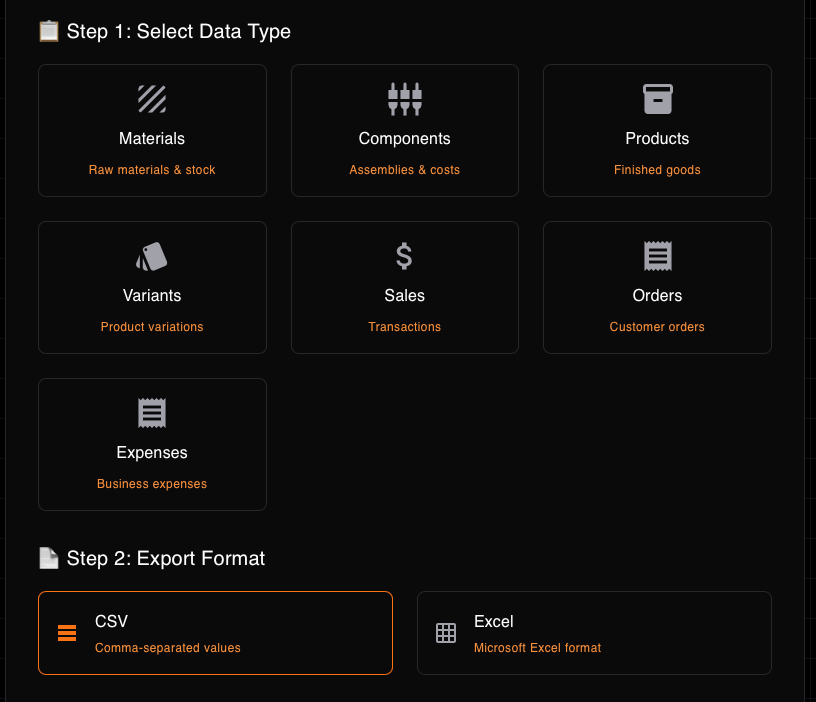
Choose exactly what data you want to export
Export Types
Individual Entity Exports
- Materials: All material data including stock levels and supplier info
- Components: Component definitions with cost breakdowns and material composition
- Products: Product catalog with variants, costs, and pricing
- Sales: Order history with profitability analysis
- Inventory: Stock levels, adjustments, and transaction history
Full Tenant Export (GDPR Compliance)
Export all your business data in a structured format for data portability compliance.
- Complete Data: All materials, components, products, variants, sales, and users
- ZIP Archive: Multiple CSV files organized by entity type
- README Included: Documentation explaining data structure
- Fast Processing: Completes within 5 minutes for most tenants
Filtering & Scheduling
Apply filters to export only the data you need, and schedule regular exports for automated reporting.
Filter Options
- Date Ranges: Export data from specific time periods
- Categories: Filter by material or product categories
- Status: Active, inactive, or archived items
- Custom Fields: Filter by supplier, price ranges, or other criteria
Scheduled Exports
- Frequency: Daily, weekly, or monthly exports
- Email Delivery: Automatic email with download link
- Saved Filters: Apply the same filters each time
- S3 Storage: Files stored securely in AWS S3
Best Practices
Import Best Practices
- Start Small: Test with a few rows before importing large files
- Use Templates: Download and modify our templates for best results
- Clean Data: Remove empty rows and ensure consistent formatting
- UTF-8 Encoding: Save CSV files with UTF-8 encoding for special characters
- Backup First: Export existing data before large imports
Export Best Practices
- Regular Backups: Schedule weekly or monthly full exports
- Filter Wisely: Use filters to reduce file size and processing time
- Download Promptly: Links expire after 24 hours for security
- Store Securely: Keep exported data in secure locations
- Version Control: Include dates in export filenames