Materials Management Guide for 3D Printing Businesses
Learn how to track filament, resin, and craft materials in StockCraft for accurate cost calculation.
Materials in StockCraft represent raw supplies like 3D printing filament, resin, paints, packaging, and any consumables used in production. Tracking material costs accurately is essential for calculating product profitability.
Step-by-Step: Adding Materials
- Navigate to Materials in the sidebar
- Click "Add Material"
- Fill in the details:
- Name: Descriptive name (e.g., "Bambu PLA Basic - Black")
- Unit Cost: Price you paid (e.g., $24.99)
- Quantity per Unit: Amount in the package (e.g., 1 kg)
- Stock Level: Current amount on hand
- Reorder Point: Stock level to trigger low stock alerts
- Click "Save Material"
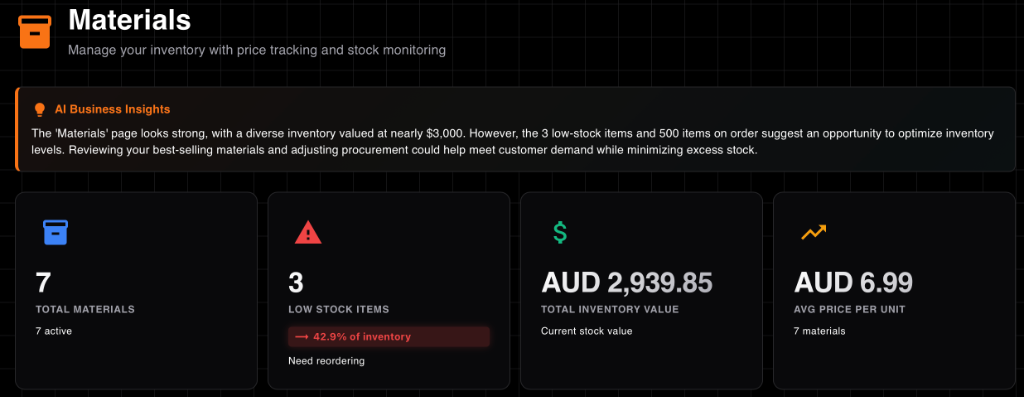
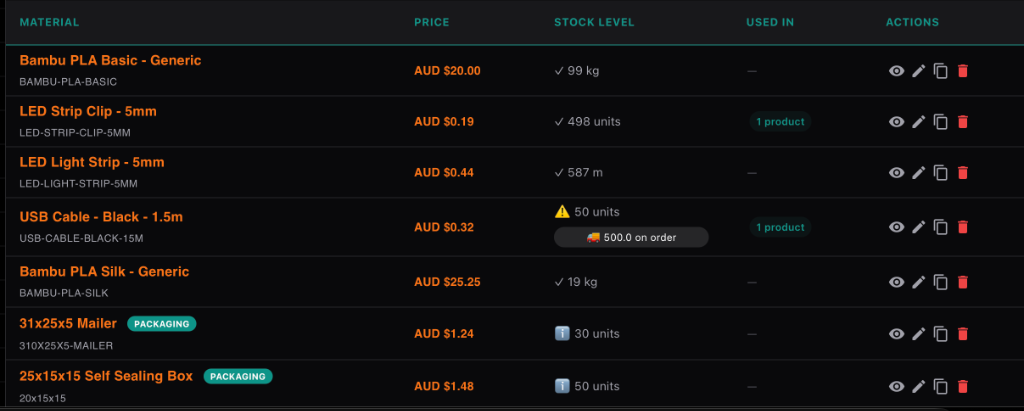
Track stock levels, values, and reorder status in one place
Pricing Strategy
When entering material costs, decide whether to include shipping and tax in the unit cost. We recommend including all costs (landed cost) to ensure your profit margins are accurate.
💡 Pro Tip: Landed Cost
If you buy 1kg of filament for $20 but pay $5 shipping, your actual cost is $25/kg. Enter $25 as the unit cost in StockCraft.
Reorder Alerts
Set a Reorder Point for each material. StockCraft runs a daily check and will alert you when stock falls below this threshold, ensuring you never run out of critical supplies during production.
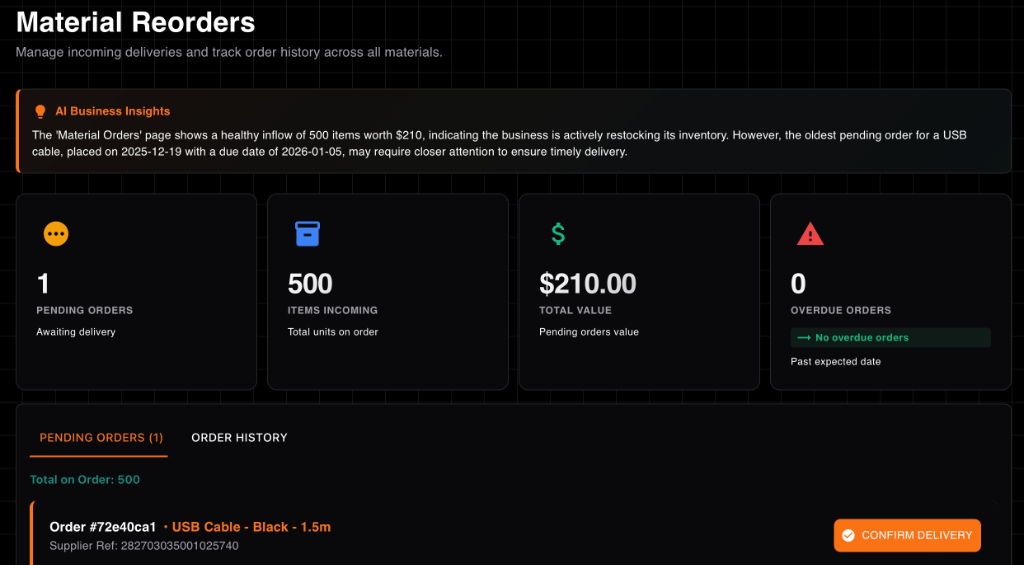
Automatic alerts when materials run low