Inventory Management Guide for 3D Printing Businesses
Track stock levels, manage adjustments, and receive low stock alerts to keep your production running smoothly.
StockCraft's inventory management system helps you track material stock levels, record adjustments, and receive alerts when materials run low. This ensures you never run out of critical supplies during production.
Stock Adjustments
Record inventory adjustments when you receive new materials, use materials for production, or need to correct stock levels.
How to Adjust Stock
- Navigate to Inventory → Adjustments
- Click "Adjust Stock" or use the button on a material's detail page
- Select the material to adjust
- Enter the quantity change (positive for additions, negative for usage)
- Select an adjustment type:
- Received: New materials delivered
- Consumed: Materials used in production
- Correction: Fixing inventory discrepancies
- Manual: General adjustments
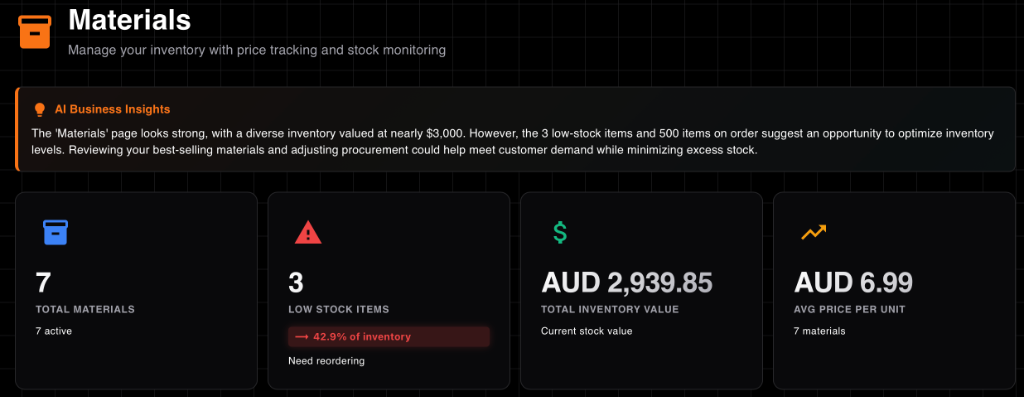
Track stock levels and adjustments
⚠️ Negative Stock Warning
StockCraft allows negative stock adjustments but will display a warning. This helps track when you've used more materials than recorded in inventory.
Low Stock Alerts
Set reorder points for materials to receive automatic alerts when stock runs low.
Alert System Features
- Automatic Detection: System checks stock levels every 15 minutes
- Visual Indicators: Low stock materials highlighted in red
- Dashboard Widget: See low stock count on your dashboard
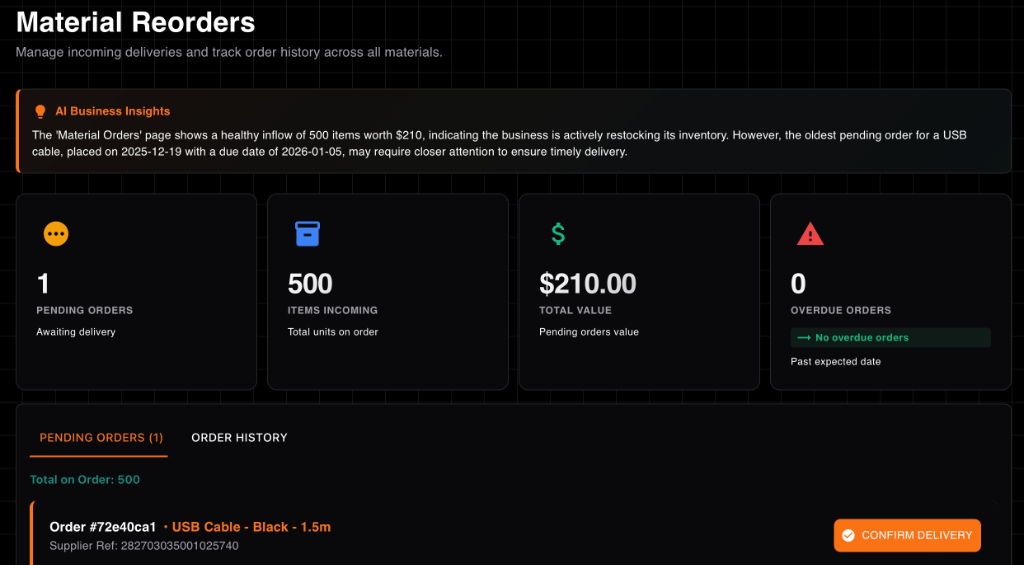
Never run out of materials with automatic alerts
Setting Reorder Points
- Edit a material in the Materials section
- Set the "Reorder Point" field
- Consider your typical usage rate and supplier lead times
- Sale: Materials consumed when fulfilling customer orders
- Component Build: Materials used when building components
- Adjustment: Manual stock adjustments
- Import: Materials added through bulk import
Inventory Reports
Generate comprehensive reports to understand your inventory investment and identify reorder needs.
Available Reports
Stock Levels Report
Shows current stock, reorder points, and days of supply for all materials. Helps identify which materials need reordering.
Inventory Valuation Report
Calculates total inventory value using current material prices. Essential for understanding your inventory investment.
Reorder Report
Lists all materials below reorder point with supplier information. Use this to create purchase orders.
💡 Pro Tip
Export inventory reports to CSV for analysis in Excel or Google Sheets. Use the export button on any report to download the data.
Transaction History
View complete transaction history to understand how materials are consumed across your business.
Transaction Types
Each transaction includes quantity, timestamp, and links to related entities (orders, components, etc.).